Controls, Settings & PC Setup Guide
A complete guide to controls, button mapping, display settings, and PC optimization for MARVEL Tōkon: Fighting Souls — covering PS5 DualSense, arcade stick, and keyboard setups.
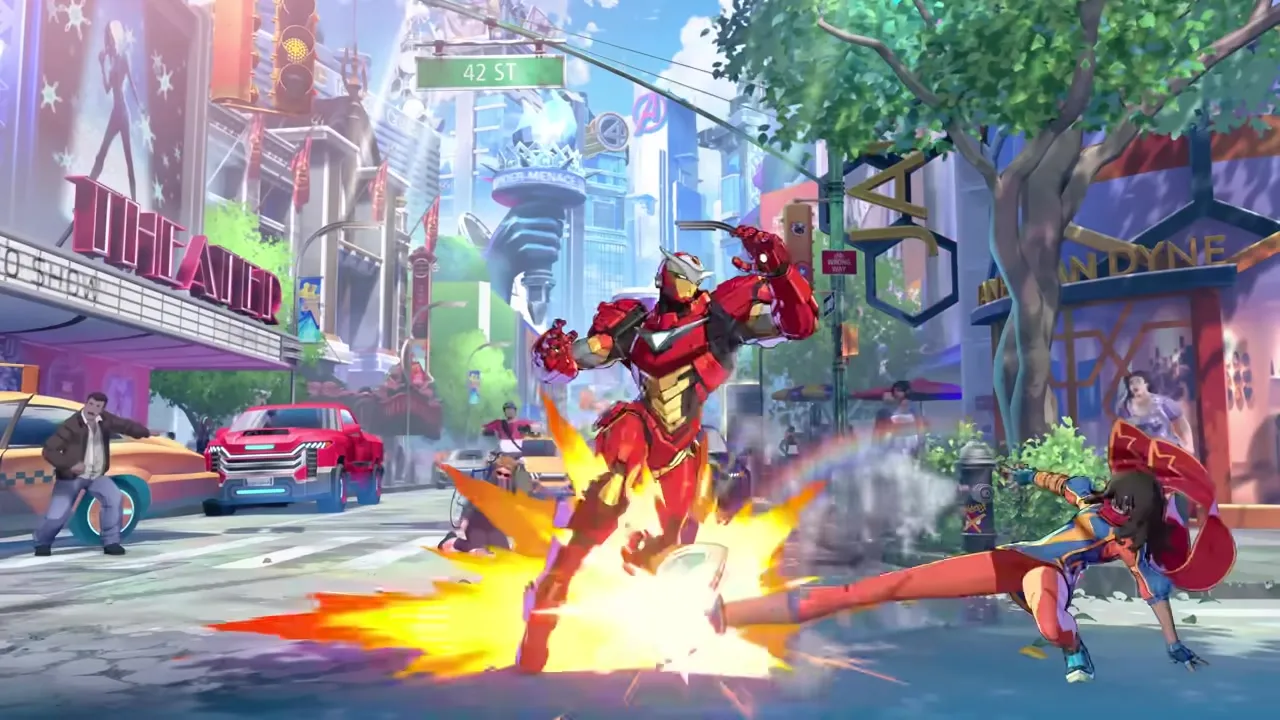
Getting your controls right before you start learning combos and matchups is one of the best investments you can make in MARVEL Tōkon: Fighting Souls. A clean button layout that makes sense to your hands means fewer execution drops, faster reaction times, and way less frustration during those tight moments when you need to burst or tag on a frame-perfect input.
This guide covers the expected button layout, controller options, recommended settings, and PC optimization. Exact in-game settings menus aren’t available pre-release, but ArcSys games follow consistent patterns that we can plan around.
Expected button layout
Based on Arc System Works’ recent fighters (Guilty Gear -Strive-, Dragon Ball FighterZ, Granblue Fantasy Versus: Rising), MARVEL Tōkon is expected to use a layout along these lines:
| Input | Expected function |
|---|---|
| L (Light) | Fast, short-range attack |
| M (Medium) | Moderate speed and range attack |
| H (Heavy) | Slow, powerful attack |
| S (Special/Unique) | Character-specific mechanic or launcher |
| Assist 1 | Call first assist partner |
| Assist 2 | Call second assist (once unlocked through the tag system) |
| Tag | Swap active character (once additional fighters are unlocked) |
Directional inputs combine with buttons for different moves: forward + H might be an overhead, down + S might be a sweep, quarter-circle forward + L/M/H triggers special moves. This is standard fighting game convention and won’t surprise anyone who’s played the genre before.
Controller options
PS5 DualSense (default for PS5 version)
The DualSense is the native controller on PS5 and works plug-and-play on PC via Steam. For most players, this is the recommended starting point.
Suggested mapping:
| DualSense button | Suggested function |
|---|---|
| Square | Light (L) |
| Triangle | Medium (M) |
| Circle | Heavy (H) |
| Cross (X) | Special (S) |
| R1 | Assist 1 |
| R2 | Assist 2 / Tag |
| L1 | Macro (L+M for throw, or custom) |
| L2 | Macro (Drive Dash or custom) |
The face buttons handle your attack chain (L > M > H flows naturally from square to triangle to circle), while the shoulder buttons manage team mechanics. This keeps your right thumb on attacks and your index/middle fingers on assists and tags — important because you’ll frequently call assists mid-combo or mid-blockstring.
DualSense haptic feedback might provide subtle vibration cues for mechanics like Wall Break proximity or Skill Gauge thresholds. ArcSys hasn’t confirmed DualSense-specific features, but it’s the kind of detail PlayStation Studios co-publishing usually pushes for.
Arcade fight stick
The traditional fighting game controller. Fight sticks use a joystick for directional input and six to eight face buttons. They’re more expensive than pads but offer a distinct tactile feel that many competitive players prefer.
Suggested stick layout (8-button):
 L    M    H    S
 A1   A2   Tag  Macro
Top row is your attack chain. Bottom row is team and utility. This mirrors the default layout of most ArcSys games on stick and lets you slide across the top row for chains while tapping the bottom row for assists and tags.
If you’re buying a stick for Tōkon specifically, look for one with a Sanwa JLF lever and OBSF-30 buttons — the de facto standard for anime fighters. Budget options like the Hori RAP series work fine for learning.
Keyboard (PC)
Keyboard is an underrated option for fighting games. Digital directional inputs (WASD or arrow keys) are perfectly precise, and the key spacing lets you map every button within easy reach.
Suggested keyboard layout:
| Key | Function |
|---|---|
| A / Left | Back |
| D / Right | Forward |
| W / Up | Jump |
| S / Down | Crouch |
| U | Light |
| I | Medium |
| O | Heavy |
| P | Special |
| J | Assist 1 |
| K | Assist 2 / Tag |
| L | Macro |
The right hand handles all attack and team buttons, with the pinky on L for utility and the other fingers covering the main inputs. It takes getting used to, but keyboard warriors like HotDog29 have proven it’s competitively viable at the highest level.
Leverless / hitbox controllers
Leverless controllers (like the Hitbox or similar) use buttons for all four directions plus attack buttons. They combine the precision of keyboard directional input with the ergonomics and button feel of an arcade stick. Increasingly popular in the competitive scene, and perfect for Tōkon’s expected quarter-circle and charge inputs.
In-game settings to check
ArcSys games typically ship with a range of settings that affect gameplay feel and performance. Here’s what to look for and adjust on day one:
Display settings
- Input delay / display lag: Set to the lowest possible value. Some games let you trade visual smoothness for responsiveness — always choose responsiveness.
- Frame rate: Lock to 60fps. Fighting games run on a 60fps engine; anything below causes frame drops that affect input timing. Anything above is typically locked by the game engine.
- V-Sync: Turn OFF if playing on a VRR-capable monitor (G-Sync / FreeSync). Turn ON if you experience screen tearing without VRR.
- Resolution: Match your monitor’s native resolution. Don’t upscale — it adds processing time.
Audio settings
- BGM volume: Personal preference, but keep it audible — ArcSys soundtracks are excellent and some sound cues help with timing.
- SFX volume: Keep this high. Hit-confirm sounds, burst activation cues, and Wall Break audio all provide important gameplay information.
Gameplay settings
- Button display: Set to your controller type so training mode shows accurate button prompts.
- Input display: Turn ON in training mode. This shows your directional and button inputs on screen, essential for diagnosing dropped combos.
- Damage numbers: Turn ON initially. Seeing exact damage values helps you compare combo routes.
PC optimization
The PC version of Tōkon (Steam and Epic Games Store) will need some tuning for optimal performance, especially on mid-range hardware.
Minimum recommended for 60fps
ArcSys PC ports typically need moderate hardware. Based on their recent releases:
| Component | Expected minimum |
|---|---|
| GPU | GTX 1060 / RX 580 equivalent |
| CPU | Ryzen 5 2600 / i5-8400 equivalent |
| RAM | 8 GB |
| Storage | SSD strongly recommended (loading times) |
Steam-specific tips
- Launch options: Add
-fullscreenand-refresh 60if the game doesn’t default correctly - Steam Input: Disable if using a PS5 controller to avoid double-input mapping conflicts. Go to Steam > Settings > Controller > General Controller Settings and uncheck PlayStation Configuration Support if you want the game to handle input natively.
- Overlay: Disable the Steam overlay (right-click game > Properties > General > uncheck “Enable the Steam Overlay”) if you experience frame drops during matches.
- Background processes: Close browsers, streaming apps, and monitoring software. Fighting games are sensitive to frame drops because they directly affect input timing.
Epic Games Store tips
- Overlay: Disable the Epic overlay in Settings > General > “Enable Overlay.”
- Cloud saves: Enable to backup your settings, replays, and progress.
Network settings (for online play)
Rollback netcode is expected in Tōkon based on ArcSys’s recent track record (Strive and GBVS: Rising both use rollback). Here’s how to optimize for online:
- Use a wired connection. Ethernet > Wi-Fi, no exceptions. Wi-Fi packet loss causes rollback spikes that make the game feel terrible.
- Close bandwidth-heavy applications. Streaming, downloads, and cloud syncing all compete with your match connection.
- Check your ping. Under 80ms is good for rollback. Under 40ms feels near-local. Over 120ms and you’ll start noticing visual rollback artifacts.
- Set the rollback buffer to 0–1 frames for low-ping connections, 2–3 for higher latency. Higher buffer means smoother visuals but slightly more input delay.
Accessibility settings
ArcSys has been improving accessibility in recent titles, and Tōkon is expected to include:
- Simplified inputs: An option to map special moves to single button presses instead of directional inputs. Great for players with mobility limitations, though competitive players typically use traditional inputs for more precise control.
- Color-blind modes: Adjusted visual indicators for Skill Gauge meter, health bars, and burst states.
- Subtitle and caption options: For Episode Mode cutscenes.
Final setup checklist
Before you queue your first match, run through this:
- Map your buttons and test them in training mode
- Set display to 60fps, V-Sync off (if VRR available), native resolution
- Turn on input display and damage numbers in training mode
- Plug in an ethernet cable for online play
- Close background applications on PC
- Practice your basic combo chain on both sides to verify everything feels right
With your setup dialed in, you’re ready to start learning the game. Head to the beginner’s guide for your first-session plan, or the everything we know overview for the full picture of what Tōkon offers.